


This walkthrough shows you how to integrate FileUploader in WebTextEditor.
During this walkthrough, you will learn how to do the following:
- Integrating WebFileUploader in WebTextEditor
- Create media resources in WebTextEditor
 Prerequisites
In order to complete this walkthrough, you will need the following:
- Visual Studio 2008 Application.
Step-By-Step Instructions
To create custom task pane in WebTextEditor
- Launch Visual Studio.NET 2008.
- Click on File menu, then select New and click Web Site.
- Select ASP.NET Web Site in the Template box and set Location to HTTP.
- Named the Web Site and click OK.
- Copy the Thumbnails folder under WebTextEditor >> Thumbnails from the WebTextEditor sample to your project root folder.
- Right-click on Project's name and select Add New Item.
- Select WebForm in the My Templates box and named it as Walkthrough.aspx.
- Drag WebTextEditor instance from ToolBar to WebForm.
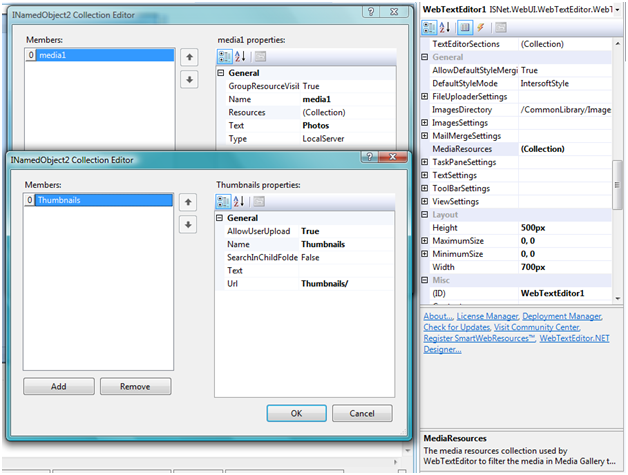
- Add some Media Resources to WebTextEditor, for example Thumbnails folder, using MediaResources property in the WebTextEditor.
- Named the TextEditorResourceGroup to Media1 and set the TextEditorResource folder to Thumbnails and AllowUserUpload property to true.
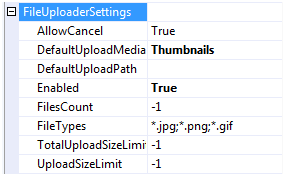
- Set the Enabled to True and DefaultUploadMediaResources to Thumbnails (the TextEditorResource name) under FileUploaderSettings section.
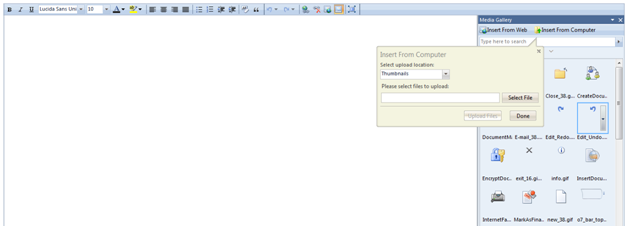
- Run the sample using web browser. The FileUploader can be accessed by clicking the [Insert From Computer] button in the Media Gallery task pane.
 See Also
Other Resources
{Integration with FileUploader}